
Screenshots
How to Organize Screenshots on iPhone — Automatically
The fastest way to organize screenshots on iPhone is to stop organizing them yourself: save the ones that matter to an app that reads them, understands them, and files them automatically. Here's how to do it — including what the built-in Photos app can and can't do.
Why your screenshots are a mess (and it's not your fault)
You take a screenshot because something matters in the moment — a recipe, a confirmation number, a tweet, a chart, a gift idea. But the camera roll is a timeline, not a filing system. A screenshot of a recipe sits between a photo of your dog and a parking receipt, and three weeks later the only way back to it is scrolling.
Most advice tells you to build albums and delete aggressively. That works for about a week, because it turns saving — a one-second action — into a chore.
What iPhone can do on its own
Before adding any app, know what's built in:
- Screenshots filter: in Photos, open your library and filter by Screenshots (or use the Screenshots collection) to hide everything else.
- Text search: Photos indexes text inside images, so searching a word that literally appears in the screenshot often finds it.
- Albums: you can file screenshots into albums manually.
The limits show up fast: search only works if you remember words that are visibly in the image, indexing can lag, albums are manual forever, and nothing connects a screenshot of a recipe to the recipe link you saved in Safari the same week.
The automatic way: let AI do the filing
Siftlee takes the opposite approach — you save, it organizes:
- Save a screenshot to Siftlee. Share it straight from the screenshot preview or from Photos using the iOS share sheet, or pick several from your camera roll inside the app.
- Siftlee reads it. It extracts the text, recognizes what the screenshot is about, and keeps that meaning alongside the image.
- It's filed automatically. Related saves are grouped into Spaces (broad categories like Food, Travel, or Health) and Threads (specific topics like “Sleep plan ideas”). No folders, no tags, no naming anything.
- Get it back by asking. Type what you remember — “the screenshot about magnesium” or “that gift idea for mom” — and Siftlee answers with the screenshot as the source.
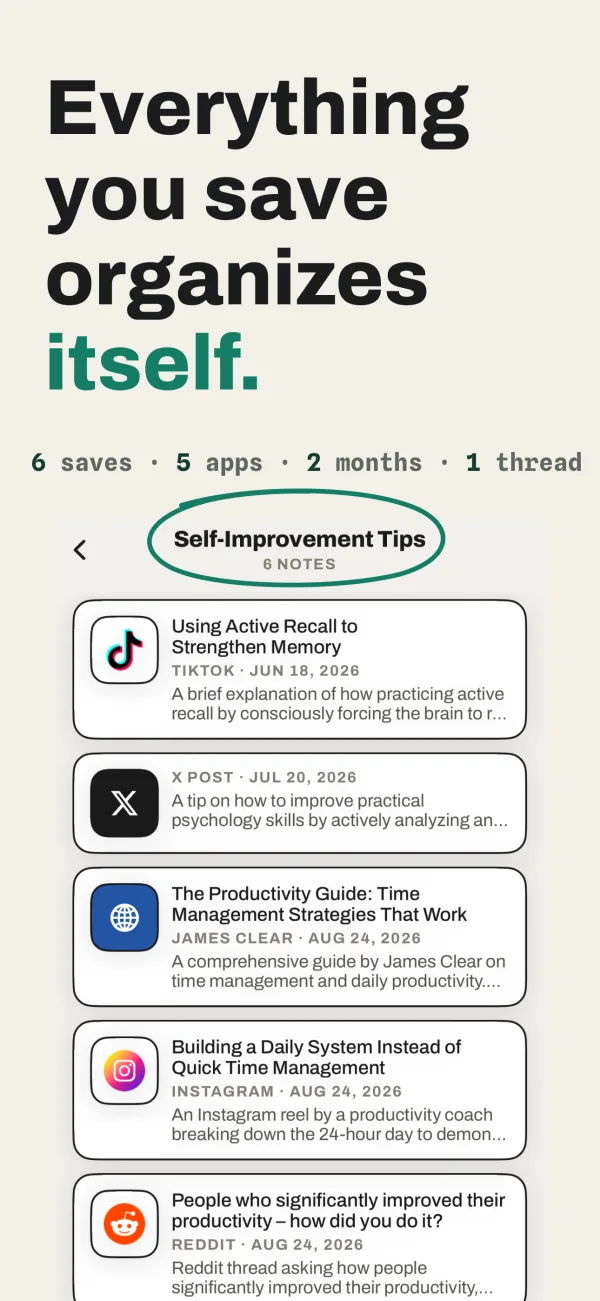
A habit that actually sticks
The trick is to separate the two jobs your camera roll is doing. Photos of your life stay in Photos. Screenshots you took to remember something get shared to Siftlee the moment you take them — one tap in the share sheet. Your camera roll stays a photo album, and everything you meant to keep becomes findable.
Old screenshots work too: select the keepers from your camera roll and save them in batches. Siftlee files them the same way.

Get Siftlee
Toss it in, it comes back better. Your AI second brain for iPhone — and your month, back as a magazine.